So you’re trying to save a video on Snapchat and nothing’s happening? Yeah, I’ve been there. And honestly?
It’s frustrating. You tap around looking for the save button and it’s just… not there. Or maybe the button shows up but then gives you some weird error message.
Good news though, I have figured out what causes this and how to fix it. Most of the time it’s something super simple.
The Real Reason Your Videos Won’t Save
Let me be straight with you. There is usually one main culprit behind this problem, and then a few other things that might be causing issues.

1. The Sender Probably Blocked It
Here’s what most people don’t realize: the person sending you the video gets to decide whether you can save it or not. That’s it. Thats your answer right there for most cases.
When someone sends you a snap, they can turn off the save option. If they did that, you literally can’t save it, no matter what you do. There’s no save button. No workaround. Nothing.
If you really need that video, just ask the person to send it again and say yes to letting you save it this time. Simple as that.
2. Your Phone Settings Are Blocking Snapchat
This one catches people off guard all the time. Snapchat needs permission to access your phone’s storage and camera. If you turned those off at some point (maybe you were trying to protect your privacy), Snapchat can’t save anything.
Think about it like this: you are telling Snapchat it’s not allowed to touch your photo gallery. So when it tries to save a video there, it gets blocked.
3. Your Phone’s Storage is Full
If your phone is running out of space, Snapchat can’t save videos. Your phone is basically saying “I have got no room left.” It’s like when you have a backpack that’s completely stuffed, you can’t cram anything else in it.
Why Can’t I Save Snapchat Videos? (The Real Steps to actually fix it)
Here’s what actually works. Don’t just guess and check, follow these in order.
I): Fix Your Permissions
This is the quickest fix and it works for most people.
If you have an iPhone:
- Go to Settings (the gray gear icon)
- Scroll down until you see Snapchat
- Tap on Snapchat
- You’ll see “Photos and Camera” at the top—make sure it says “Allow”
- Also check “Files” and make sure that’s allowed too
If you have an Android phone:
- Open Settings
- Find Apps (it might say Applications or App Manager depending on your phone)
- Look for Snapchat
- Tap on Permissions
- Make sure Storage is set to “Allow” and Camera is “Allow” too
This is the thing that fixes it for most people. Seriously. Do this first.
II): Check Your Snapchat Settings
Now open Snapchat and make sure it’s actually set to save videos where they should go.
- Tap on your profile picture in the top left (your Bitmoji or face)
- Tap the Settings gear icon
- Scroll down to Memories
- Look for “Save Destination“
- Make sure it says “Memories & Camera Roll” (not just “Memories“)
If it’s only set to save in Memories (Snapchat’s own storage), your videos won’t go to your phone’s gallery. They will just sit in Snapchat and disappear.
III): Just Restart Snapchat
I know it sounds dumb, but closing the app and opening it again actually works. Your phone sometimes gets confused.
- Swipe up from the bottom (iPhone) or swipe from the top (Android) to close all apps
- Wait like 5 seconds
- Open Snapchat again
- Try to save the video
IV): Restart Your Whole Phone
If that didn’t work, turn your phone completely off and back on. I’m talking full restart.
- Hold the power button
- Turn it all the way off
- Wait 10 seconds
- Turn it back on
- Open Snapchat
This clears out a lot of small glitches that build up.
V): Clear Out the Junk Files (Android Only)
Android phones collect something called “cache” it’s basically temporary junk that Snapchat stores. Clearing it can help. (iPhone users can skip this one.)
- Go to Settings
- Find Apps or Application Manager
- Tap Snapchat
- Look for Storage
- Tap “Clear Cache”
This is safe. You’re just deleting temporary stuff, not your actual photos or account info.
VI): Make Sure You Have Space
Check if your phone’s storage is actually full.
- Go to Settings
- Look for Storage or About Phone
- See how much free space you have
- If it’s less than 500 MB (super tiny), you need to delete some stuff
Delete some old apps or photos you don’t need. Just free up a little room.
VII): Update Snapchat App
Make sure you’re running the newest version of the app.
- Go to the App Store (iPhone) or Google Play Store (Android)
- Search for Snapchat
- If there’s an “Update” button, tap it
- Let it download
Sometimes Snapchat has little bugs and updates fix them.
VIII): Try Logging Out and Back In
This one’s a bit nuclear, but it works sometimes.
Before you do this, write down your username and password somewhere.
Then:
- Go to Settings
- Find Account
- Look for Log Out
- Tap it
- Restart your phone while you’re logged out (this is important)
- Turn it back on and log back in
People have said this fixed the save problem when nothing else worked.
Final: Delete and Reinstall
If you have done all of this and nothing’s working, uninstall Snapchat completely and install it fresh.
Again, write down your login info first.
- Go to Settings
- Find Snapchat
- Choose Uninstall
- Wait a minute
- Go to the App Store or Play Store
- Search for Snapchat
- Download and install it
- Log back in
It sounds dramatic, but sometimes a fresh install just works.
What If It’s the Sender’s Fault?
Okay so you have done all that stuff and videos STILL won’t save? Then the person sending them probably blocked saves on their account.
Here’s the thing,Snapchat lets people choose who can and can’t save their videos. If they picked no one, or they picked specific people and you’re not one of them, you can’t save anything they send.
You’ll look at the video in the chat and there just won’t be a save button at all.
Only thing you can do is ask them to resend it and let you save it. If they don’t want their videos saved, that’s their choice and you have to respect it. That’s actually why a lot of people like Snapchat more than other apps, your stuff doesn’t stick around forever.
The Keep in Chat Thing (People Get This Confused)
Snapchat has something called “Keep in Chat” that’s different from regular saving.
Here’s how it works: someone sends you a video, you swipe left on it, and you tap “Keep in Chat.” The video stays in your chat with that person permanently (or until you delete it).
But here’s the catch, both people have to agree to it. And the person can still delete it anytime they want.
So “Keep in Chat” is more like bookmarking something in your chat history. It’s not the same as saving it to your phone’s camera roll.
Best Way to Save Snapchat Videos (Use a Snapchat Video Downloader)
If you want to download Snapchat videos easily, a Snapchat video downloader is your best option. SchatDownloader.com is one tool that works pretty well for this.
- It’s free to use.
- No watermark gets added to your video.
- You don’t need to install anything or create an account.
- Just paste the link and download your video in seconds.
Thousands of people use it and it’s reliable. Fast. Simple to figure out. No complications.
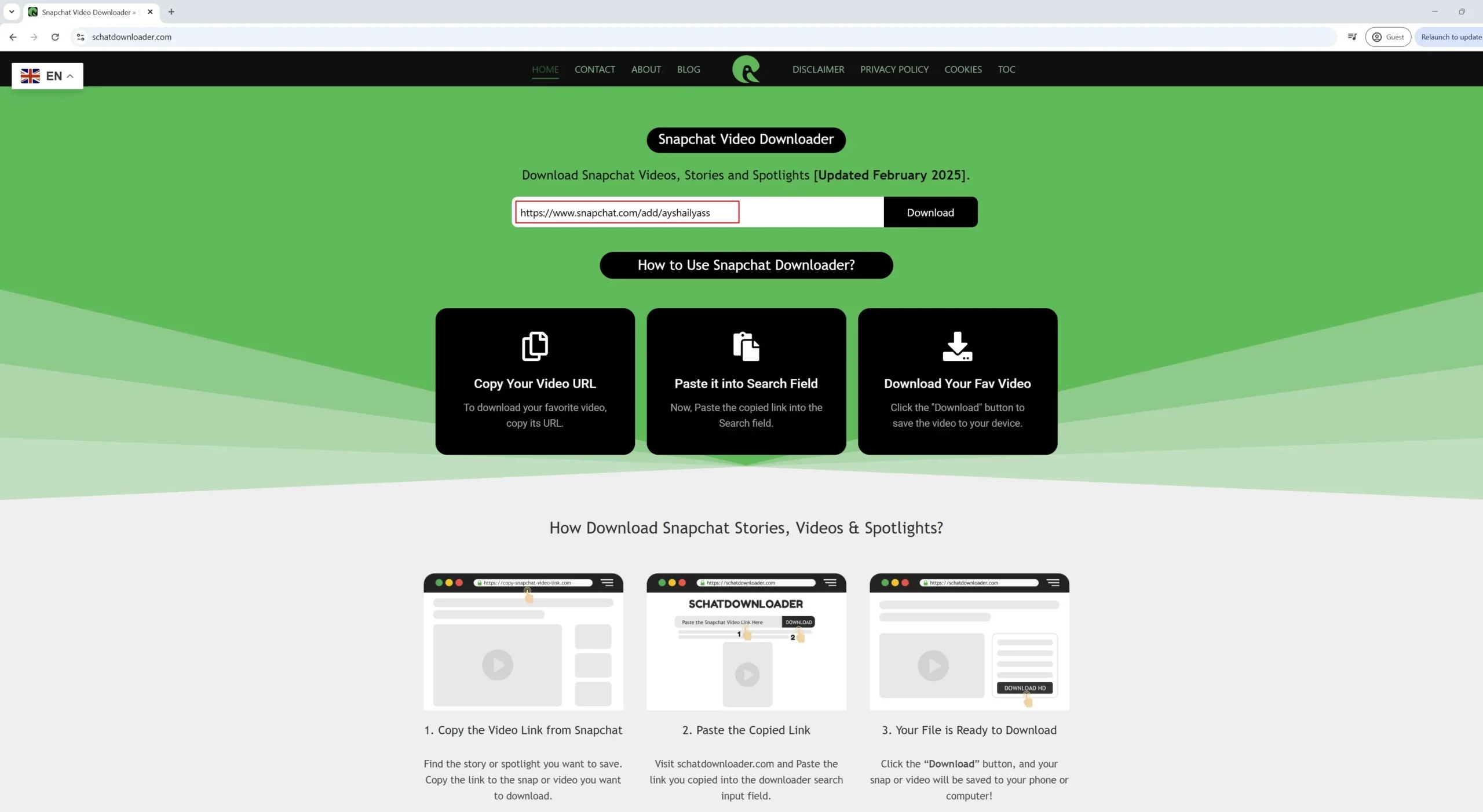
How to Download Snapchat Videos Using SchatDownloader.com?
Step 1: Get the Video Link
Find the Snapchat video you want. Tap Share. Copy the link.
Step 2: Go to the Downloader
Open your browser. Go to SchatDownloader.com
Step 3: Paste It
Paste the link in the box on the homepage.
Step 4: Download
Click Download. Wait a few seconds. That’s it.
Step 5: Save to Your Phone
Pick the video quality you want. Save it. No watermark. Crystal clear.
Done. Your video’s on your phone now.
The Bottom Line
Snapchat videos not saving? 99% of the time it’s either:
- The sender blocked saving (nothing you can do)
- Your permissions aren’t set right (easiest fix)
- Your save destination isn’t set to camera roll (five second fix)
- Your phone needs a restart (works all the time)
Follow the steps above and you’ll figure it out. If you’re still stuck, comment below and I can help you troubleshoot your specific situation.
Just remember, don’t use sketchy third-party apps as they can ask for your phone’s permissions like call history, filemanager, location etc.
So, the best way is to use schatdownloader.com (Its 100% safe, secure aur reliable)