Suppose your daughter posted the cutest video on Snapchat, maybe she’s singing, or your grandkids are being silly and you desperately want to save it. You pick up your phone to screen record, but then you stop. Will she get a notification? Will she know?
That worry is exactly why I wrote this guide. You’re not alone, and the answer is not as scary as you think. Let me walk you through everything, step by step – no tech experience needed.
You also read: Save Snap Memories to Camera Roll
Before We Start (What You’ll Need)
Don’t worry, this is easier than it sounds. Before we begin, just make sure you have:
✅ Your smartphone (iPhone or Android, both work)
✅ The Snapchat app installed and logged in
✅ The video or Story you want to save already found
✅ A few minutes of quiet time to follow the steps
That’s it. You don’t need to download anything extra, you don’t need to be a tech expert, and you don’t need to spend any money.
First, the Important Question: Will They Know?
This is what everyone wants to know before doing anything else. So let’s answer it right now, clearly.

The honest answer: it depends on WHAT you are recording.
Think of it like this, Snapchat has two types of content:
Type 1 – Private messages and personal Snaps (things someone sent just to you) Snapchat WILL send the other person a notification if you screen record these. So if your friend sent you a private video message and you record your screen while watching it – yes, they will see a small alert.
Type 2 – Public content (Stories that anyone can view, Spotlight videos, public posts) Snapchat does NOT notify anyone. You can screen record these completely safely.
Here’s a simple way to remember it:
| What You’re Recording | Will They Know? |
|---|---|
| A video someone sent just to you | ✅ Yes, they’ll see a notification |
| Someone’s Story (posted for friends/everyone) | ⚠️ Sometimes, depends on settings |
| A public Spotlight video | ❌ No, completely safe |
| A video you saved in your own Memories | ❌ No, it’s your content |
Most of the time, what people want to save – a cute Story, a funny Spotlight clip – falls in the “no notification” category. So take a breath. You’re probably fine.
Method 1: Screen Record on iPhone (Step by Step Guide)
Good for: Saving any public Story or Spotlight video on Snapchat.
First, we need to set up your iPhone to have a Screen Record button available. You only need to do this setup once — after that, it’s always there.
Setting Up Screen Recording (One-Time Setup):
Step 1.1: Find the Settings app on your iPhone, it looks like a grey square with gears on it.
Step 1.2: Scroll down and tap “Control Centre”.
Step 1.3: Look for a list that says “More Controls”. Scroll through it until you find “Screen Recording”.
Step 1.4: Tap the green plus (+) button next to Screen Recording. You’ll see it move up to the “Included Controls” section. Done!
✅ Quick Check: If Screen Recording now appears in your “Included Controls” list, you’ve done it right.
Now Let’s Record:
Step 2.1: Open Snapchat and find the Story or Spotlight video you want to save. Get it ready to play but don’t press play yet.
Step 2.2: Swipe downward from the top-right corner of your iPhone screen. (On older iPhones with a Home button, swipe up from the very bottom instead.) A menu will slide out — this is called the “Control Centre“
Step 2.3: You’ll see a small circle-inside-a-circle button. That’s the Screen Record button. Tap it once.
Step 2.4: You’ll see the numbers 3… 2… 1… count down at the top of your screen. Your phone is about to start recording everything.
Step 2.5: When the countdown ends, quickly go back to Snapchat and press play on the video.
Step 2.6: Let the video play all the way through. When it’s done, swipe down from the top-right corner again and tap the red recording button to stop. Or tap the red bar at the very top of your screen and tap “Stop.”
Step 2.7: The recording saves automatically to your Photos app — go check it there!

✅ Quick Check: Open your Photos app and look at your most recent videos. Your recording should be right there at the top.
Method 2: Screen Record on Android (Step by Step Guide)
Good for: Samsung, Google Pixel, OnePlus, or any Android phone users.
The good news: most Android phones have Screen Recording built right in — no setup needed.
Step 1: Open the Quick Settings Menu
Step 1.1: With your thumb, swipe downward from the very top of your screen — all the way down, not just a little.
Step 1.2: You’ll see a row of small square icons (Wi-Fi, Brightness, Airplane Mode, etc.). This is called the “Quick Settings” menu.
Step 1.3: Look through these icons for one that says “Screen Recorder” or “Screen Record.” It usually looks like a small video camera or a circle.
If you don’t see it, swipe left on that row of icons — there are often more icons hidden on the next page.

Step 2: Start Recording
Step 2.1: Tap Screen Recorder.
Step 2.2: A small box may pop up asking what audio to record. Choose “Media sounds” if you want to hear the video’s sound, or “No audio” if you just want the video. Tap “Start.”
Step 2.3: A countdown will appear. Quickly open Snapchat and find your video.
Step 2.4: Press play and let it run completely.
Step 2.5: When done, pull down your notification menu from the top and tap “Stop” on the Screen Recorder notification.
Step 2.6: The video saves to your Gallery app automatically.
✅ Quick Check: Open your Gallery (or Photos) app. Your screen recording should appear as the most recent video.
Method 3: The Easiest Way — Use SchatDownloader Instead
Here’s a little secret: for public Snapchat content, you don’t even need to screen record. There’s a much simpler way that gives you a better quality video with zero effort.
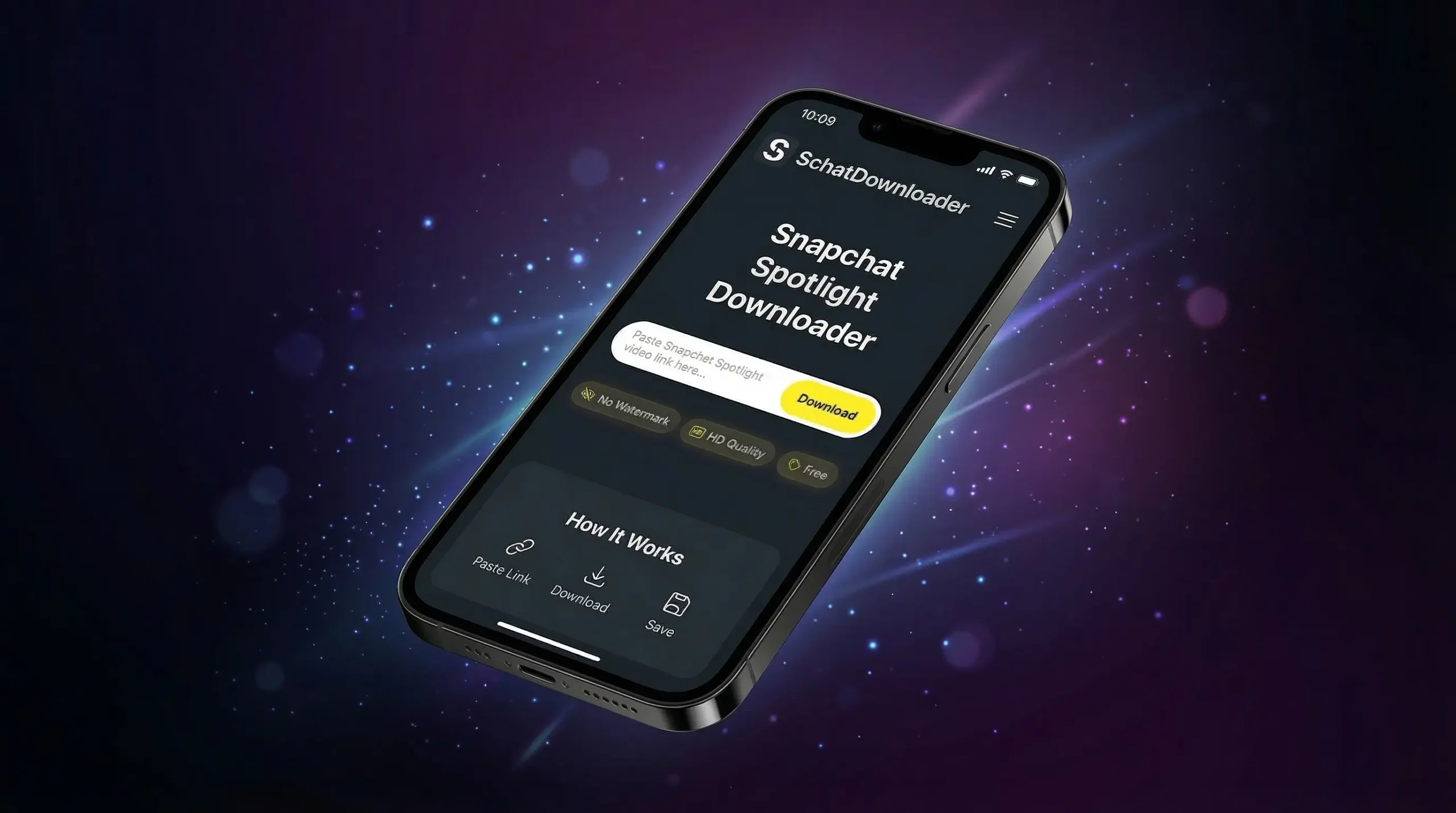
It’s called SchatDownloader.com and it’s completely free.
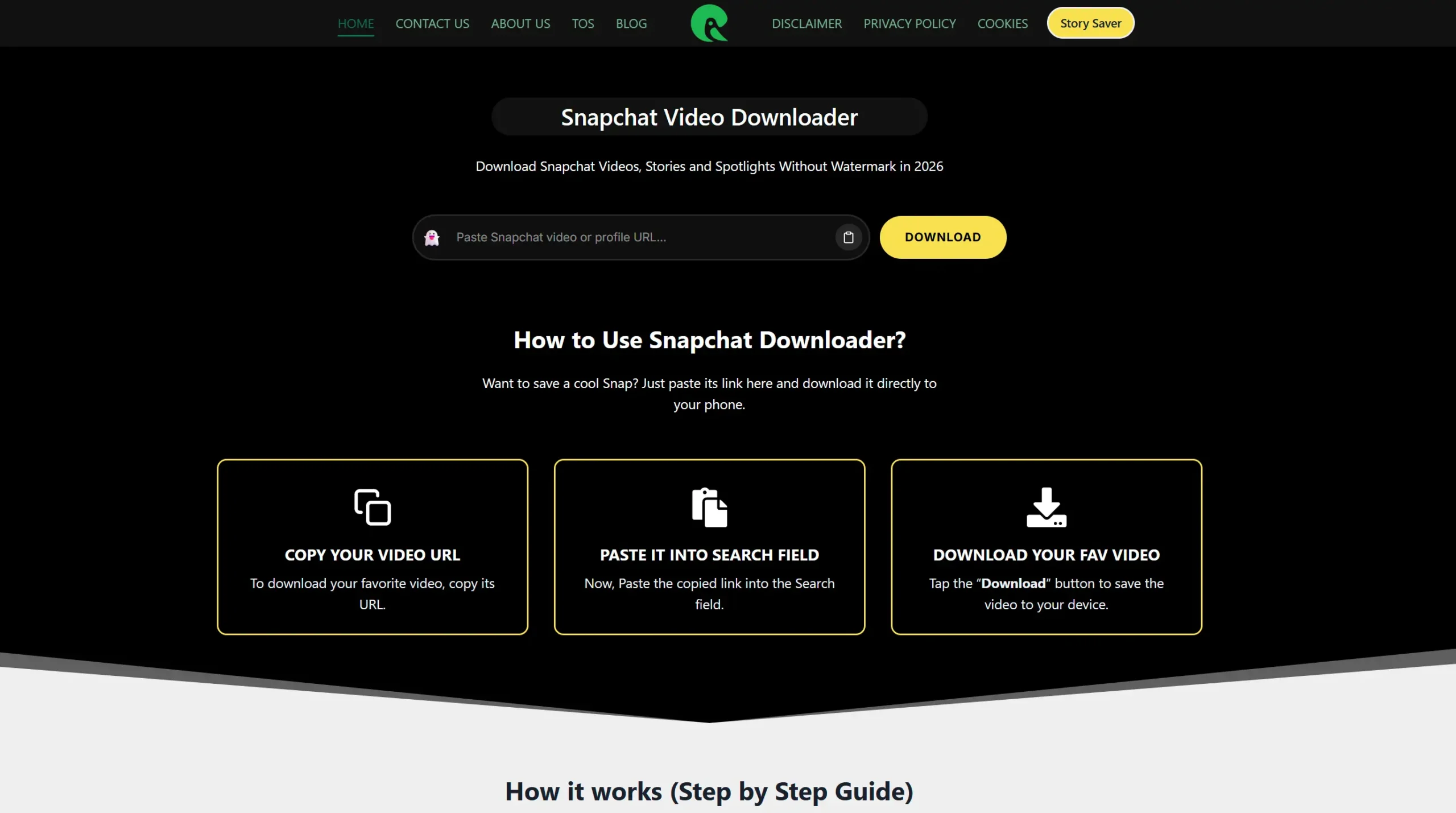
Instead of recording your screen (which can be wobbly and low quality), SchatDownloader grabs the actual original video file straight from Snapchat. Think of it like getting the original photo versus a photo of a photo.
Here’s How to Use It (Super Simple):
Step 1: Open Snapchat and find the Spotlight video or public Story you want to save.
Step 2: Tap the share arrow button (it looks like an arrow pointing right).
Step 3: In the menu that appears, tap “Copy Link.” (This copies the video’s web address – like copying a word to paste it somewhere else.)
Step 4: Open your phone’s internet browser (Safari on iPhone, Chrome on Android).
Step 5: Type schatdownloader.com in the address bar and tap Go.
Step 6: Tap inside the big search box on the page and paste the link you copied. (To paste: tap and hold inside the box, then tap “Paste.”)
Step 7: Tap the yellow “Download” button.
Step 8: The video will appear. Tap “Download” again to save it to your phone.

✅ Quick Check: Go to your phone’s Photos or Gallery app — the video should be there, in full HD quality.
No notifications. No screen recording. No technical steps. Just a clean, clear video saved to your phone in about 30 seconds.
Method 4: Use a Second Phone or Tablet
The most foolproof method works in every situation, every time.
This sounds old-fashioned, but it’s genuinely the safest option when you’re worried about any possible notification even for private content.
What You’ll Do:
Step 1: Get a second device — an old phone, a tablet, a friend’s phone — anything with a camera.
Step 2: Open Snapchat on your main phone and get the video ready to play.
Step 3: Open the camera app on your second device.
Step 4: Point the second device’s camera at your main phone’s screen.
Step 5: Press record on the second device, then press play on Snapchat.
Step 6: Stop recording when the video ends.
That’s it. Snapchat has absolutely no way to detect a physical camera pointed at your screen — it only detects software recording. So this method is 100% undetectable, always.
The quality won’t be as crisp as a direct download, but if you hold the camera steady and keep your room well-lit, it’s perfectly watchable.
✅ Quick Check: Play back the recording on your second device. You should see the Snapchat video clearly. If there’s glare, try tilting the phones slightly so your overhead light isn’t reflecting.
Common Problems & Easy Fixes
“I can’t find the Screen Recorder button on my Android!”
Different Android phones call it different things and put it in different places. Try searching “Screen Recorder” in your phone’s Settings app search bar. On Samsung phones it’s almost always in Quick Settings. On older phones, you may need to download a free app called “AZ Screen Recorder” (available in the Google Play Store).
“I recorded the video but it’s completely black!”
This happens on some iPhones and Android phones when Snapchat detects screen recording for private Snaps and blocks the screen from being recorded. It’s Snapchat’s protection kicking in. The solution: use Method 4 (second phone) or — if it was public content — use SchatDownloader instead.
“The Screen Recording button isn’t in my iPhone Control Centre.”
You may need to scroll within the Control Centre, or you may not have added it yet. Go back to Settings → Control Centre and check that Screen Recording is in the “Included Controls” section. If it’s not there, tap the green + button next to it.
“I copied the link from Snapchat but SchatDownloader says it’s invalid.”
The link needs to come from the Share → Copy Link option inside Snapchat, not from a text message or notification. Go back to the video in Snapchat and use a fresh copy of the link.
“The video saved but there’s no sound!”
You may have selected “No audio” when starting the screen recording. That’s easy to fix — just re-record and this time select “Media sounds” (Android) or make sure your phone isn’t on silent when you start recording (iPhone).
FAQ (Your Nervous Questions, Answered)
If it’s a public Spotlight video or a public Story – no, they will not receive any notification. If it’s a private Snap they sent just to you – yes, Snapchat will show them a small alert. For anything public, you’re completely safe.
The absolute worst case for public content is nothing — no notification goes out, your video saves, and no one knows. The worst case for private Snaps is that the person sees a notification. No one gets in trouble, no accounts get banned. It’s just an awkward notification.
No, not at all. You just go to the website, paste the link, click Download, and you’re done. No sign-up, no password, no email needed.
If your grandchild’s Snapchat account is set to public, their Stories can be seen by anyone, and downloading them won’t send a notification. If their account is private and you’re on their friends list, it might show a notification. When in doubt, use the second-phone method (Method 4) — it’s always safe.
Saving content for personal use, like keeping a memories of your grandkids is generally considered personal use and is fine. Where it gets complicated is if you share someone else’s video publicly without their permission. As long as you’re saving it for yourself, you’re okay.
Snapchat Stories disappear after 24 hours. If you see something you want to save, do it right away — don’t wait. SchatDownloader works as long as the content is still live on Snapchat.
Final Verdict:
See? That wasn’t so bad. Whether you used the screen recorder on your iPhone, the one built into your Android, the second-phone trick, or the super easy SchatDownloader method – you now know exactly how to save Snapchat videos without anyone knowing.
The most important thing to remember: public content is always safe to save. No notification, no drama, no problem.
Next time you see a Spotlight video or a Story you want to keep, head straight to SchatDownloader.com – paste the link, hit Download, and your video will be saved in beautiful quality within seconds. No tech skills required. Promise.
Last updated: March 2026 | Written for iPhone and Android users of all experience levels